BSS Anywhere Swiper
Created on: Dec 08, 2025
PRE-REQUISITES
- The plugin requires you to install the BSS Core plugin first.
INSTALLATION
- Go to the Order Details Page and Download plugin package
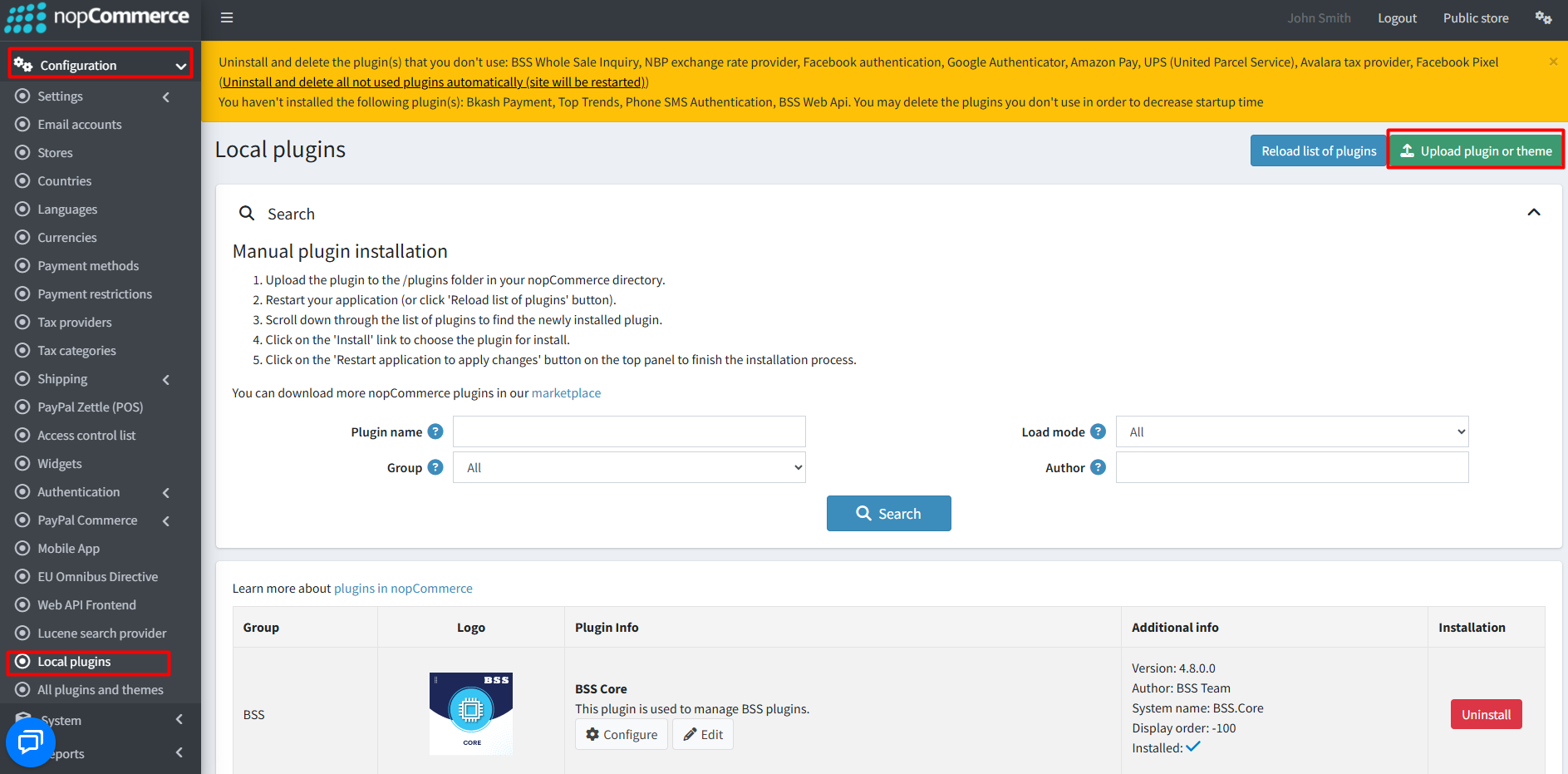
- Go to Administration → Configuration → Local plugins
- Within the bundle, you get all the required files, including BSS.Core
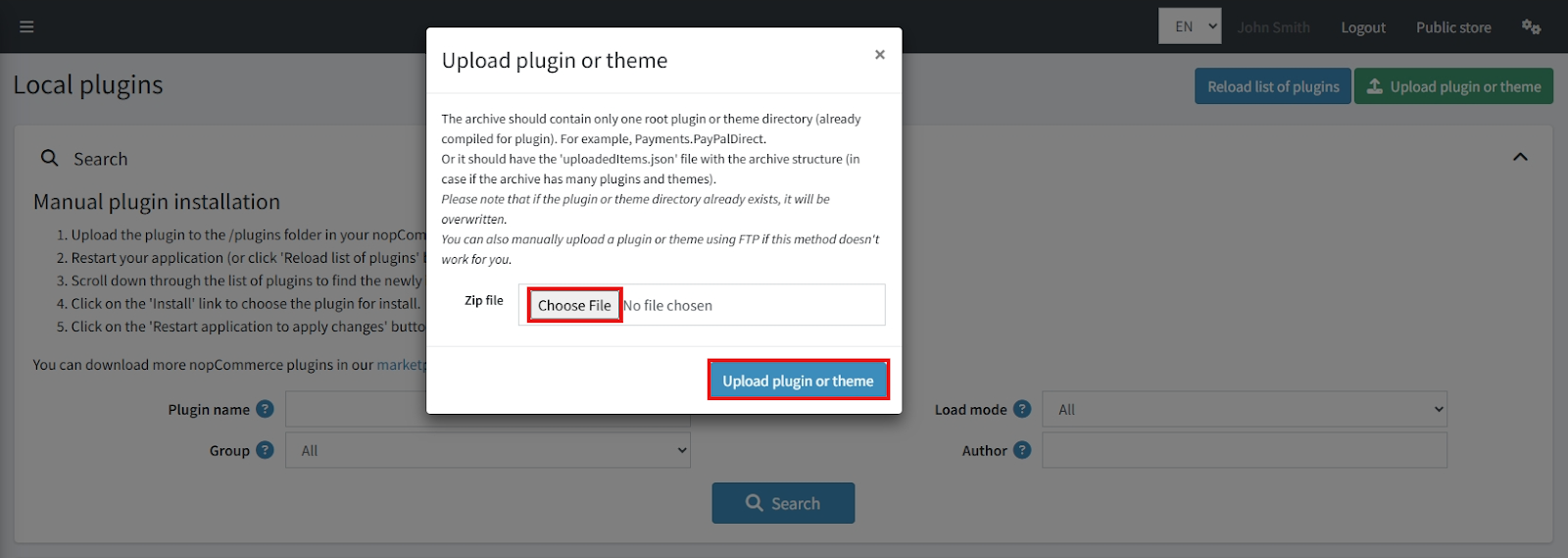
- Upload the zip files using the ‘Upload plugin or theme’ button
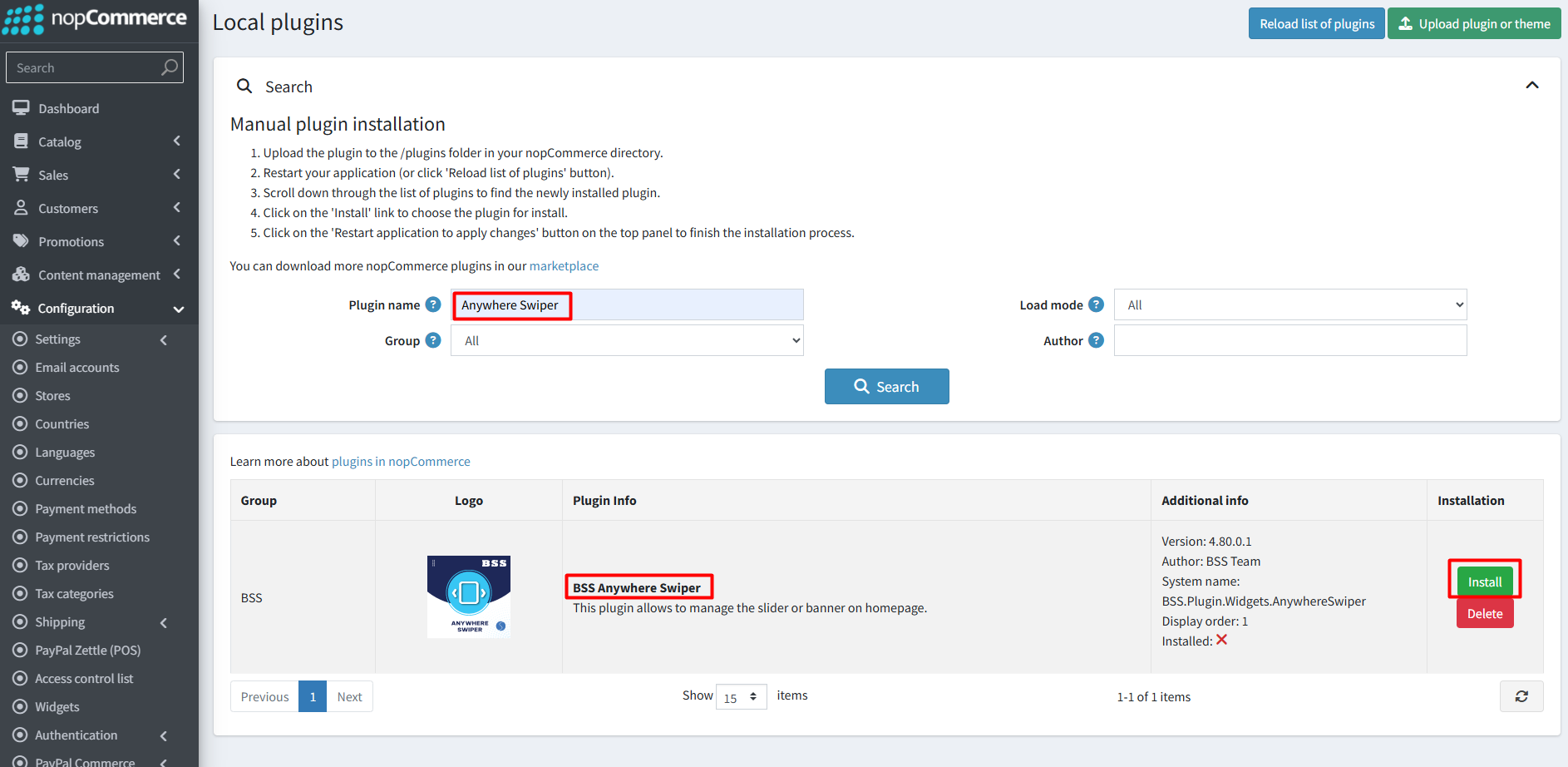
- After uploading, reload the ‘list of plugins’ and install the ‘BSS Core’ Plugin first. Scroll down or write the name of the plugin in the search bar, then install ‘AnywhereSwiper.’
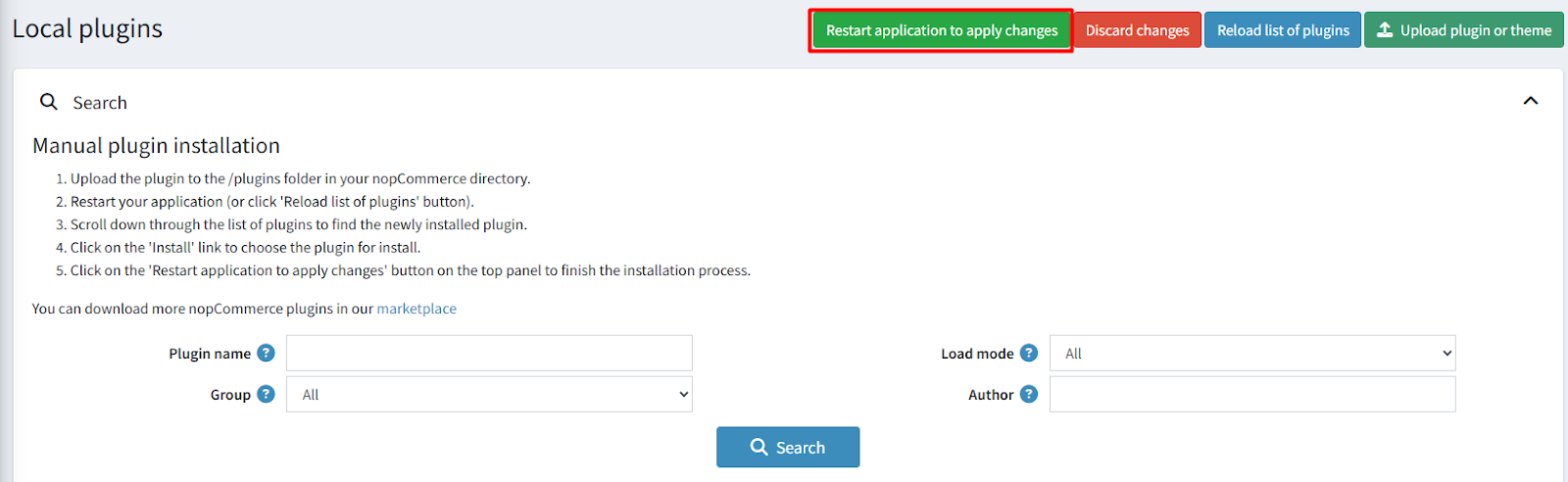
- To make the plugins functional, restart the application.
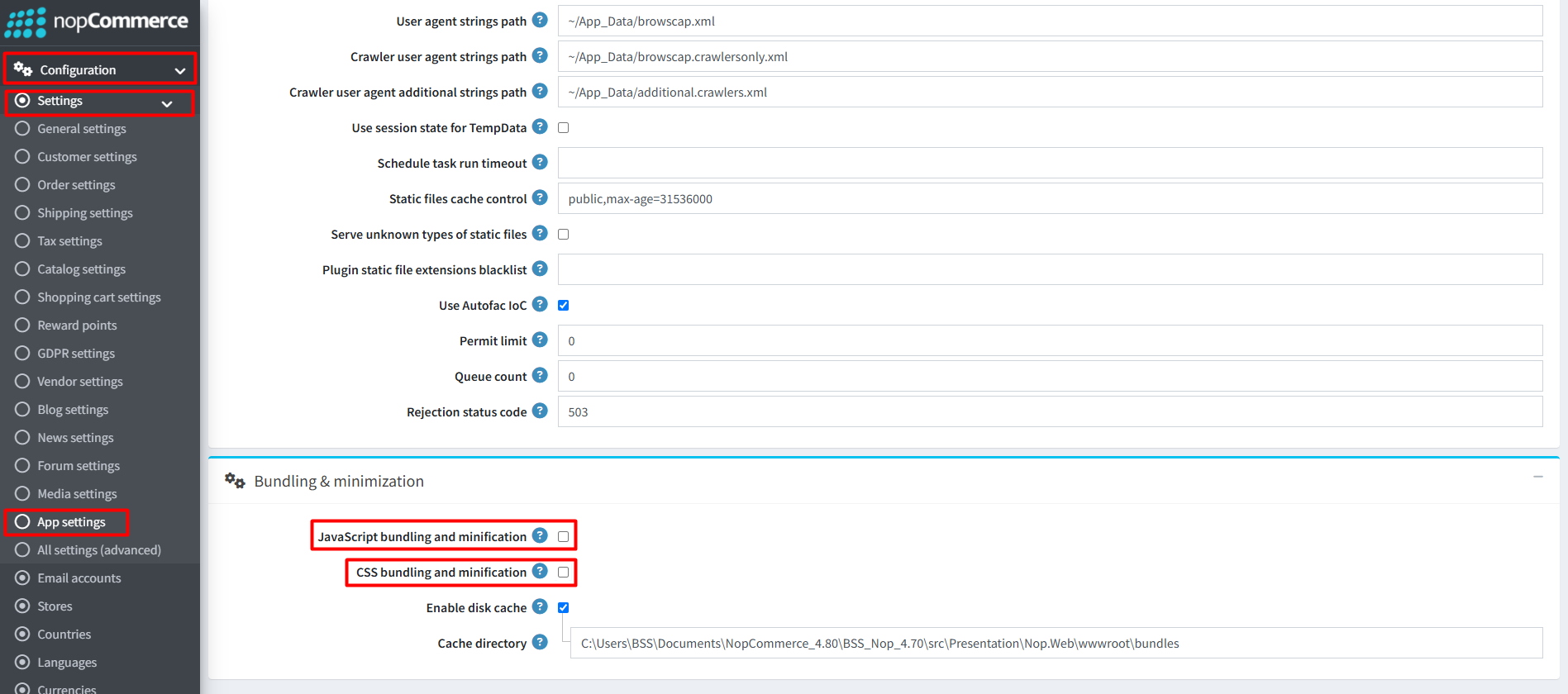
Recommendation: Go to > App Settings. If you find JavaScript bundling and minification, CSS bundling and minification are checked, then uncheck these two options and disable them.
CONFIGURATION
- Go to Admin → BSS → Plugins → Anywhere Swiper → Configuration. Then enter the License string and save it. Clear cache

- Again go to BSS → Plugins → Anywhere Swiper → Configuration to set the configuration.
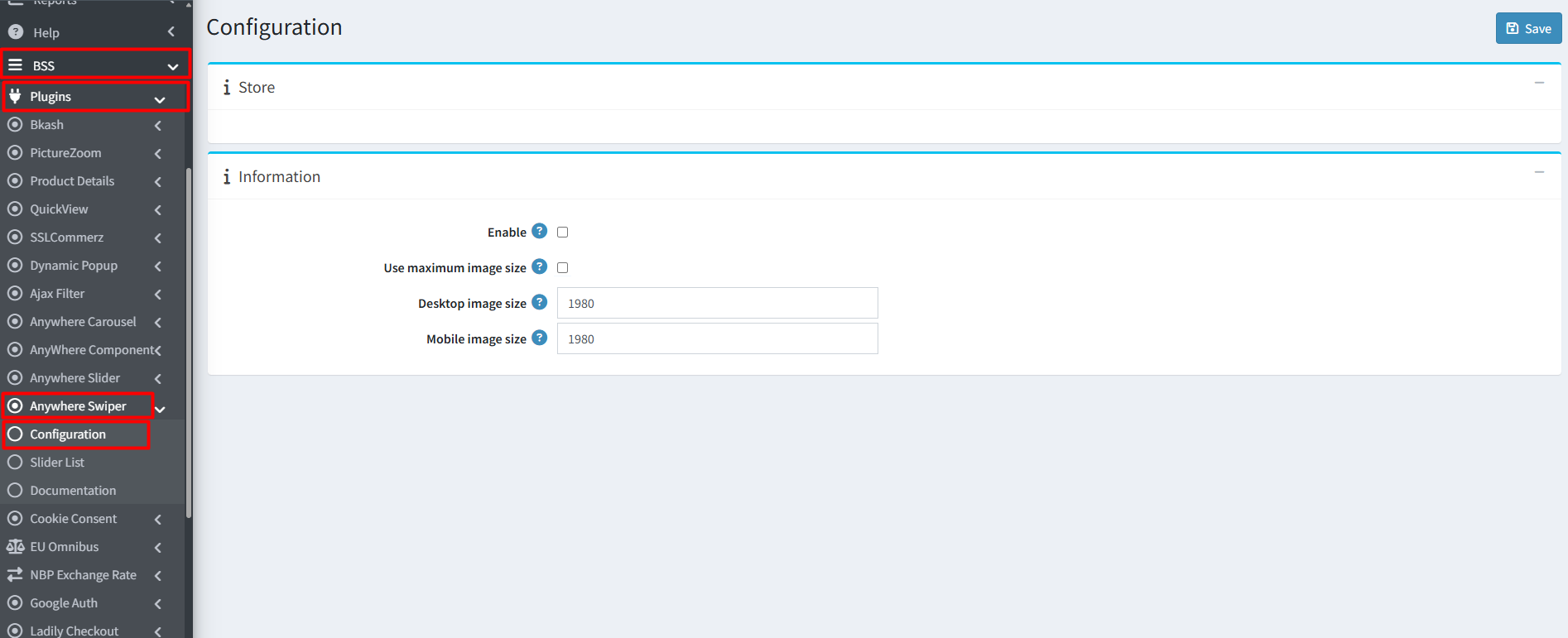
- Check the ‘Enable’ box.
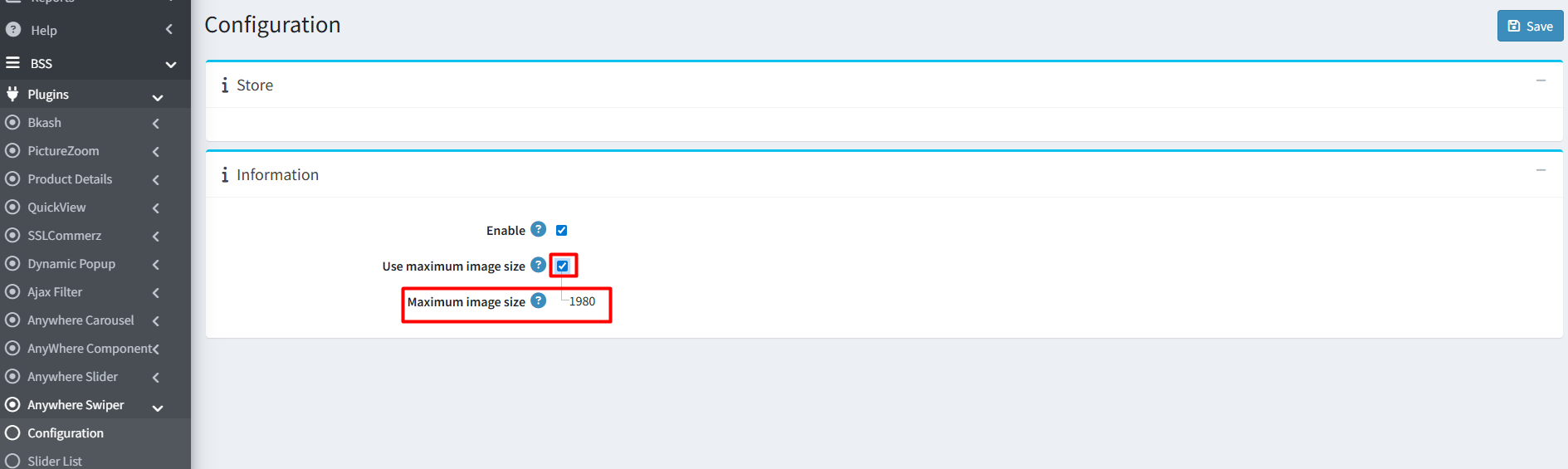
- Use maximum image size : Check this box to upload maximum image size as 1980.
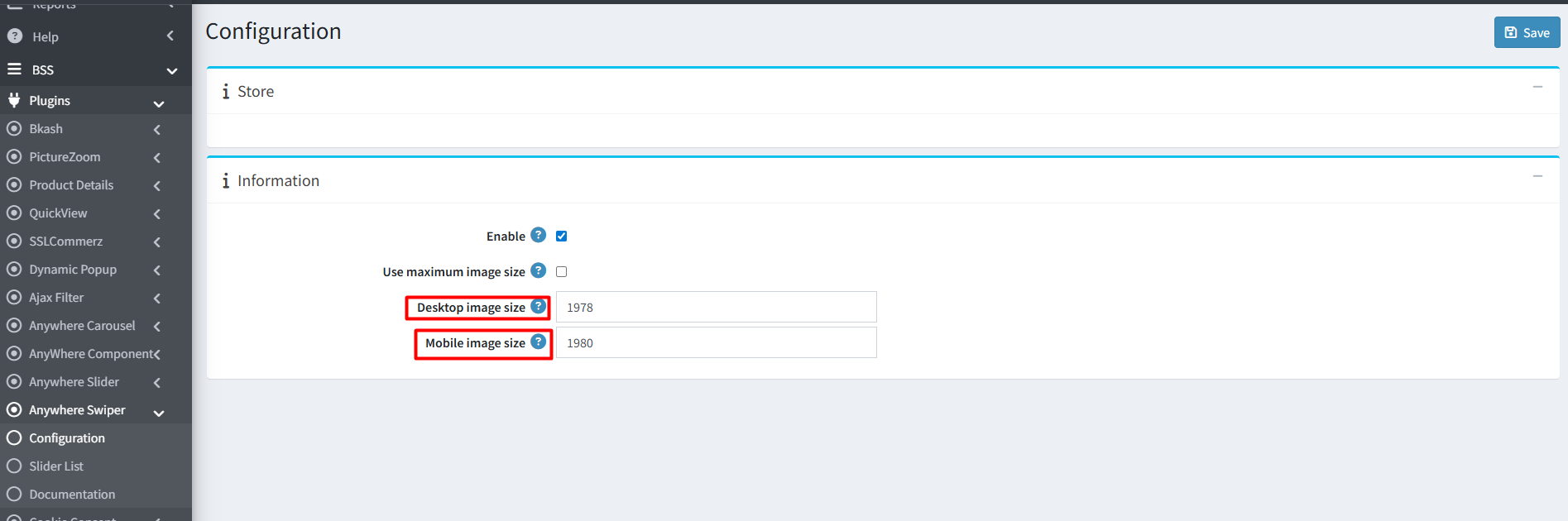
- Use maximum image size : Uncheck this box to set different image sizes for Desktop and Mobile view. Then save it.
CREATE/EDIT SLIDER
- Go to Admin → BSS → Plugins → Anywhere Swiper → Slider List. You can see all the slider lists.
- Create: To create a new slider, click Add new button
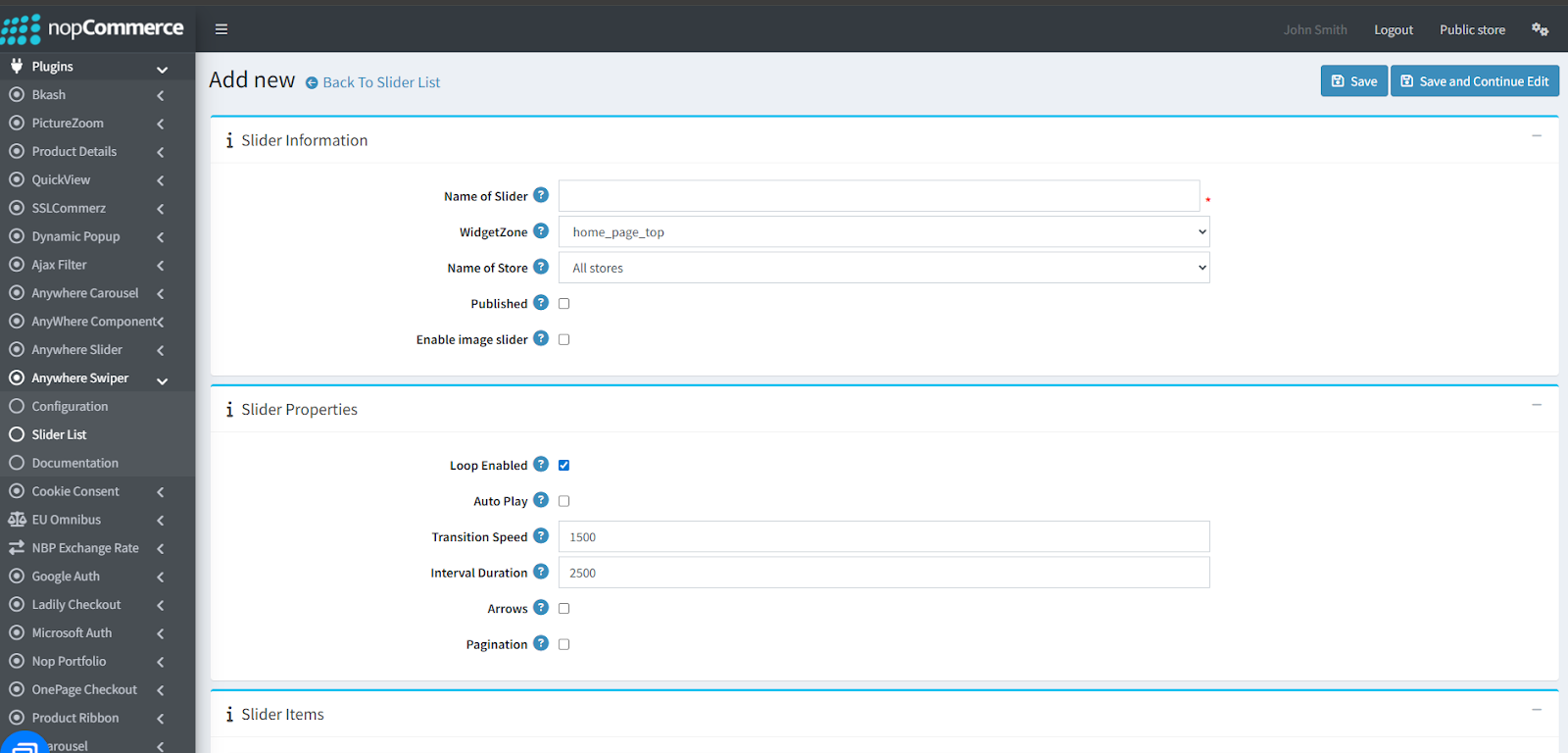
Slider Information
- Name of Slider: The slider name
- Widget zone: From the list of Widget Zones you can select the locations in which you want your slider to appear in your public store. If you want to add the slider to widget zones click the drop-down, select your desired widget zone
-
Name of Store: Select store name from the drop-down list to show the slider for that specific store
-
Published: Check box to visible the slider in public store and uncheck not to show it public store view.
-
Enable image slider: Check box to set slider category as image type. The image slider will be visible in public stores. Keep unchecked to show it as content image slider
Slider Properties
-
Loop Enabled: Check this property to determine if the slider runs in continuous autoplay mode.
-
Autoplay: By checking this property, it enables auto play
-
Transition Speed: Specifies the carousel transition speed in milliseconds. Set to 0 to make the slide immediately jump to the target slide.
-
Interval Duration: Set time in milliseconds to set how long each slide stays on screen before moving to the next.
-
Arrows: Check the box if you want to show arrow. This must be enabled even if you are providing your own arrows via HTML.
-
Pagination: Check to enable the navigation indicator dots.
Slider Items
-
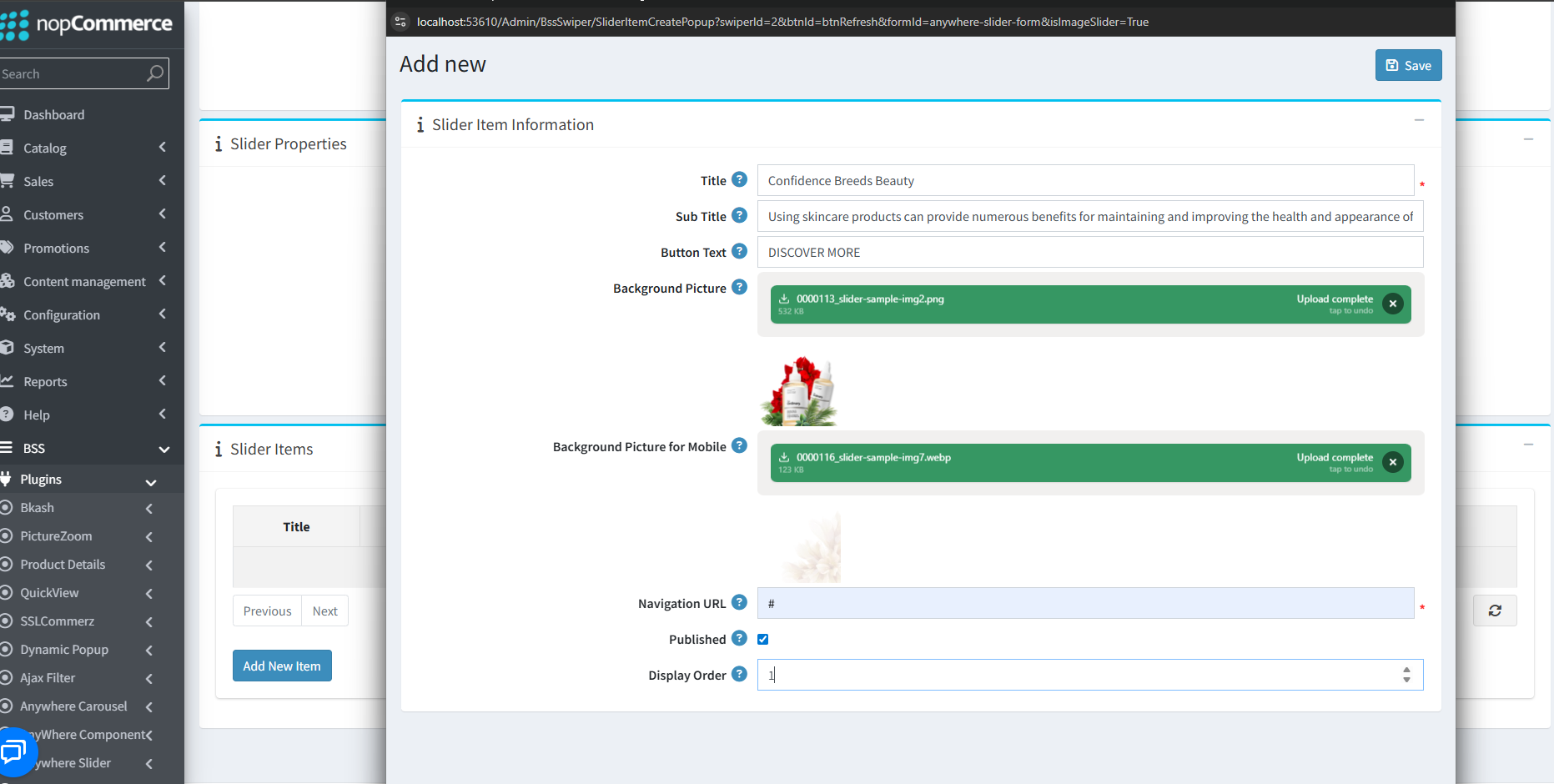
Click Add New Item to add slider item information
-
Title: Enter the title of the slider, title will show on left side of the slider
-
Sub Title: Enter the sub title of the slider, sub title will show on left side of the slider
-
Button Text: Enter the button text of the slider, button will show on left side of the slider
-
Background picture: Upload background picture, it’s recommended to use image size 1200W x 462H pixels
-
Background picture for Mobile: Upload banner image for mobile screen, it’s recommended to use image size 425W x 270H pixels
-
Navigation URL: Enter a full URL ( https://mystore.com/electronics) or just the URL slug (e.g., electronics) to link the item.
-
Published: Check box to publish the slider in public store.
-
Display order: Display order is the order list of the slider item, like 1 value represents the top of the slider item
-
Edit: Click edit button to edit slider item information
-
Delete: Click delete button to delete slider item information
-
After setting all slider info and properties, click save button and slider will show in List of Slider.

PUBLIC VIEW
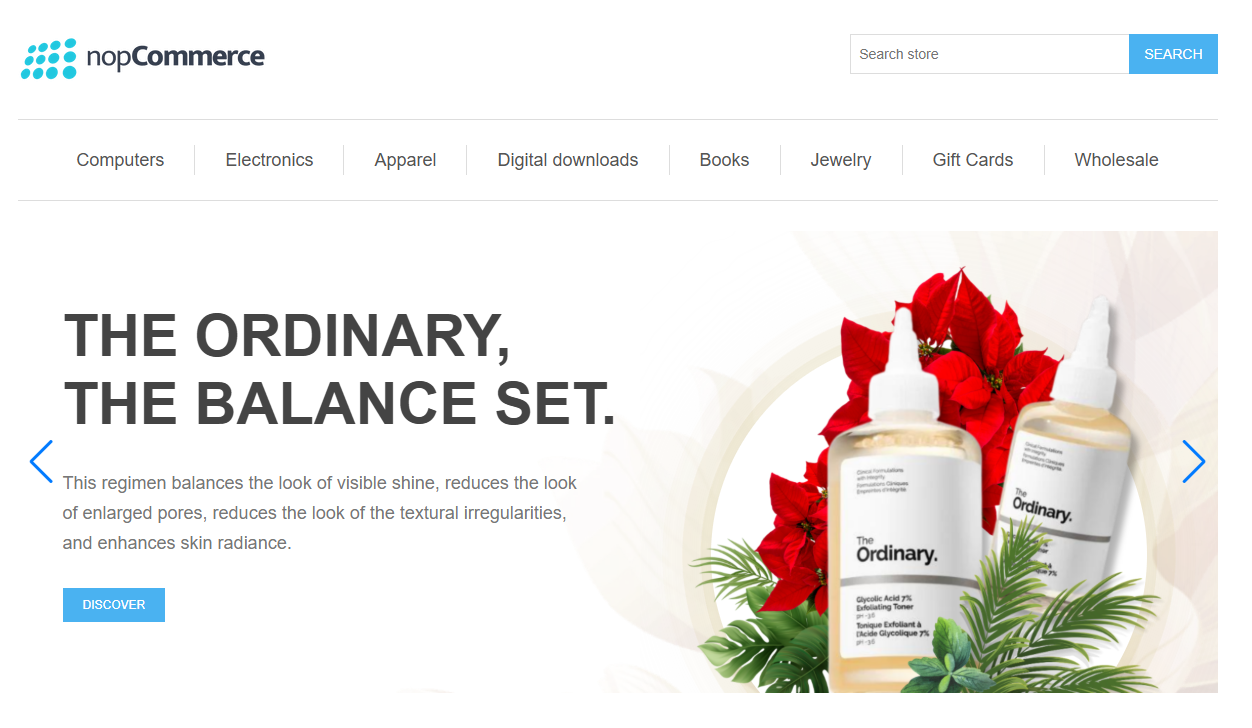
Features :
- A display order is effective when placing multiple sliders in the same widget zone.
- It supports views and styles that are open for modification to match any store design.
- It is fully compatible with all modern browsers for a seamless experience.
- The sliders can slide automatically using the Autoplay feature.
- It supports Transition Speed and Interval Duration settings to control the timing of animations and slide pauses.
- Navigation Arrows and Pagination dots can be toggled on or off as needed.
- It supports separate background pictures for Desktop and Mobile views to ensure responsiveness.
- Interactive elements like Titles, Subtitles, and Button Text can be added to make the home page more attractive.
- Automatically update banner content based on the selected language for a personalized browsing experience.